Milwaukee tools with ONE-KEY technology give users smart control, tracking, and security features. At times, you may want to turn that system off for privacy, resale, troubleshooting, or simple preference.
This guide explains how to disable Milwaukee ONE-KEY in a clear and direct way. You will learn what ONE-KEY does, why some owners decide to disable it, and what steps you need to follow inside the app.
Many users feel confused about account settings, Bluetooth pairing, and tool removal. This article breaks each step into simple actions so you stay in control of your equipment. You will also understand what happens after you disable ONE-KEY and how it affects tracking and customization features.
Clear instructions help you avoid mistakes and protect your investment. Read on to manage your Milwaukee tool settings with confidence and ease.
How to Disable Milwaukee ONE-KEY?
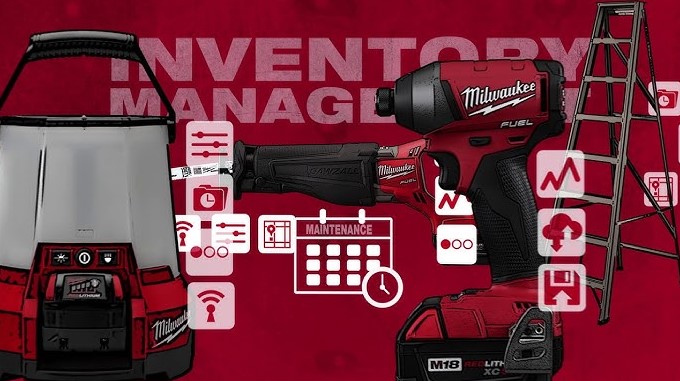
Milwaukee ONE-KEY is a smart digital system used in many Milwaukee tools. It connects your tools to your phone through Bluetooth and the Milwaukee ONE-KEY app.
This connection allows you to track your tools, change speed or power settings, lock them remotely, and manage your tool inventory.
Some users want to disable ONE-KEY. Reasons include selling the tool, giving it to someone else, fixing connection issues, or simply no longer using the system.
This guide explains every step clearly. Even beginners can follow it and understand what happens at each stage.
What Is Milwaukee ONE-KEY?
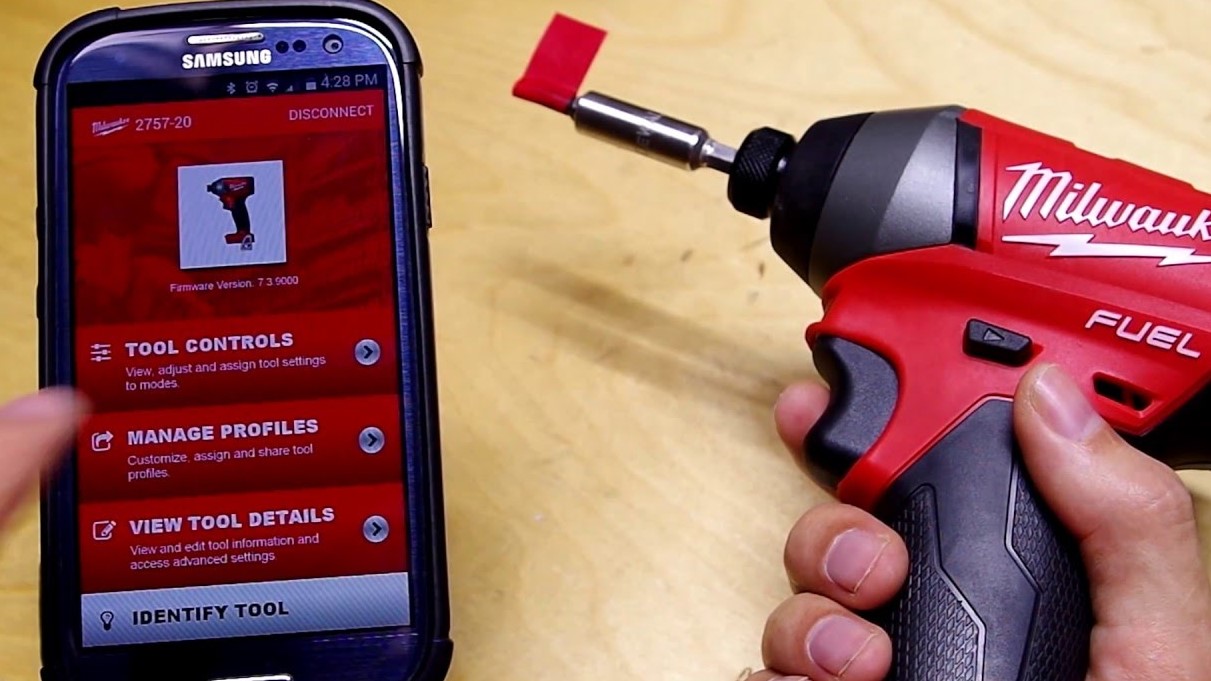
Milwaukee ONE-KEY combines software and hardware. It works with tools that have a digital component, mostly power tools such as drills, impact drivers, and saws.
Main Functions
-
Tool Tracking: Track the location of your tools using GPS in your phone.
-
Remote Lock: Lock the tool so it cannot be used by anyone else.
-
Custom Settings: Adjust speed, torque, or power based on your job needs.
-
Inventory Management: Keep a list of all tools in your account. This is useful for large job sites.
The system is designed for productivity and security. But it can be disabled if you no longer need it.
Why Disable Milwaukee ONE-KEY?
Disabling ONE-KEY may be necessary for several reasons:
-
Selling or Giving Away a Tool: The new owner cannot use the tool if it is still connected to your account.
-
Removing Tool from Company Account: Some companies manage tools with ONE-KEY. Removing the tool requires proper account management.
-
Fixing App or Connection Problems: Tools may not respond due to software errors. Resetting or removing the tool can fix this.
-
Protecting Privacy: Your tool usage and location data are linked to your account. Removing ONE-KEY protects your data.
Understanding why you disable ONE-KEY helps ensure you do it safely.
How to Disable Milwaukee ONE-KEY Using the App?
The most reliable method uses the ONE-KEY app. This ensures proper removal from your account.
Step 1: Open the Milwaukee ONE-KEY App
-
Turn on your phone and open the app.
-
Keep Bluetooth turned on.
-
Log in using your username and password.
Step 2: Access Your Inventory
-
Tap “Inventory” or “Tools” from the main menu.
-
The app will display all tools linked to your account.
-
Scroll or search for the tool you want to remove.
Step 3: Remove the Tool
-
Tap the tool name to open its settings.
-
Find “Remove Tool” or “Delete Tool”.
-
Tap the option and confirm your decision.
Once completed:
-
Tool disconnects from your account.
-
Custom settings and speed adjustments are erased.
-
The tool can now be registered by someone else.
Factory Reset for the Tool
Some tools allow a factory reset to remove app settings and restore default modes. This is separate from removing your account connection.
General Factory Reset Steps
-
Turn off the tool and remove the battery.
-
Reinsert the battery.
-
Hold down the trigger and mode button together for 5–10 seconds.
-
Watch for flashing lights or a sound indicating reset.
Note: Factory reset may not remove account ownership. The app still holds registration information. Always remove the tool from the account first.
What Happens After Disabling ONE-KEY?
Disabling ONE-KEY affects the tool in several ways:
-
Tool no longer connects to your account.
-
Tracking and location features stop.
-
Custom settings are erased.
-
Remote lock options are removed.
-
New owner can register the tool without conflict.
Tools remain fully functional for normal use unless remote lock was previously enabled.
Removing Remote Lock from the Tool
Some users lock tools remotely using the app. This prevents anyone from using the tool until unlocked.
Unlock Steps:
-
Open the ONE-KEY app.
-
Select the locked tool from your inventory.
-
Tap “Unlock Tool”.
-
Confirm your choice.
Once unlocked:
-
Tool works normally.
-
Custom settings need to be reconfigured if needed.
Without this step, the tool may appear nonfunctional even after account removal.
What to Do If You Cannot Access the App?
Situations occur where you lose app access:
-
Forgot password
-
Phone lost or broken
-
Account issues
Solutions:
-
Use the app’s password reset option.
-
Log in from another device.
-
Contact Milwaukee customer support.
Support verifies ownership. They may ask for proof of purchase. Once verified, they can remove your tool from the account. This ensures tools remain secure and prevents conflicts with new owners.
Tips for Safely Disabling ONE-KEY
-
Always remove the tool from the app before selling it.
-
Keep proof of purchase for warranty and verification.
-
Double-check remote lock status to prevent access issues.
-
Update your app to the latest version for smooth operation.
Following these tips ensures smooth transition and tool safety.
FAQs
Can I disable Milwaukee ONE-KEY without the app?
No. Account connection is managed through the app. Removal without the app is not possible.
Does removing ONE-KEY affect warranty?
No. Warranty remains active. ONE-KEY only controls tracking and tool settings.
Can a new owner register the tool?
Yes. After removal from your account, another person can register it normally.
Does factory reset remove account ownership?
Not fully. Factory reset only clears tool settings. App removal is necessary for account disconnection.
Can I reconnect ONE-KEY later?
Yes. Reinstall the app and register the tool again. Settings will need reconfiguration.
Conclusion
Disabling Milwaukee ONE-KEY is simple but important. Open the app. Remove the tool. Confirm removal. Use factory reset for settings if needed.
Account removal ensures privacy, smooth resale, and tool control. Follow these steps carefully. Take your time. After completion, the tool stands free from ONE-KEY management, ready for use or transfer.